The Initiate DR button is greyed out
Why Initiate DR cannot be clicked, how to read the colours in Latest Activities and what to do to unlock it.
The Initiate DR button is always there, top right on the DR page. Until a completed backup exists it stays grey and cannot be clicked. Hover it and you get the reason, “At least one completed backup is required to start a DR”. In the band under the DR name, instead of Protected, you read Waiting for the first backup.
What counts as a good backup
A backup that finished successfully. A backup that closed with a warning is not enough and leaves the button grey.
On some Linux servers the backup ends with a warning even when the copy is valid and restorable. In that case Sefthy support can turn on the Warning = Success switch on that single DR, which treats warnings as successes and unlocks restore, return on premises and the automatic restart test. It only applies to the DR it is turned on for, so name that DR in your ticket.
Where to read backup status
The DR page has two different cards, and they are easy to mix up.
- Latest Activities, the map of the last 7 days with one cell per hour. The tooltip on each cell counts what happened in that hour.
- Latest Tasks, the job table with a period filter, duration and per-row detail.
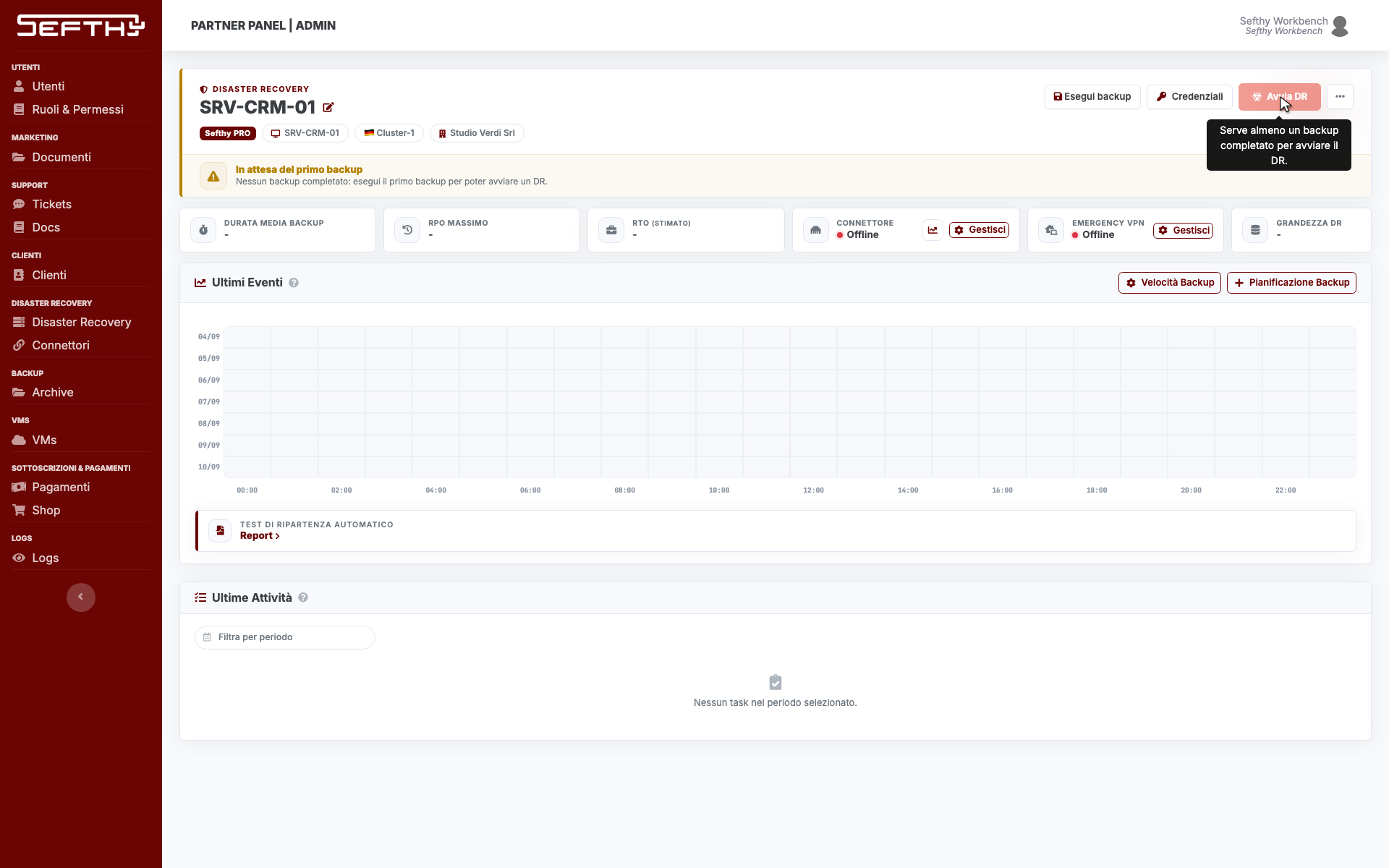
In the map each cell takes the colour of what happened in that hour.
- Green, backup completed successfully.
- Blue, something is still running. With the double tick it is a successful DeepVerify instead.
- Orange, that hour holds both something that worked and something that had problems.
- Red, nothing succeeded in that hour. This covers a real error, storage quota exceeded, a cancelled job, a job that ended unexpectedly and a backup that closed with a warning.
- Grey, the backup never started. Either the schedule was missed, or another backup was already running at that hour.
- Green or red circular arrow, the outcome of the automatic restart test.
When the button is not there at all
It disappears entirely, instead of staying grey, in these cases.
- A VM of this DR is already running in the Sefthy cloud.
- A local restore is in progress.
- Your user has no permission to start a DR, for example a read-only customer user.
- The DR is suspended, typically after a missed payment.
How to unlock it
- Open the DR page and click Backup now.
- Pick the destination, Sefthy Cloud or Local SMB, and confirm.
- Follow the run in Latest Tasks. As soon as the job closes green, Initiate DR turns red and clickable.
If the backup keeps failing, open the job detail from the table and read the error lines. From there open a ticket in the Console with the DR name and the job time.