What is a Connector
The bridge between the customer network and the Sefthy cloud. What it does, how you cable it and which forms you can install.
The Connector holds the customer network and the Sefthy cloud together. Every Disaster Recovery plan needs one, and it does two jobs.
Under normal conditions it watches the devices in the DR plan and reports their state to the Console. When you start a cloud restore it links the company infrastructure to the restored resource, without anyone having to touch the existing network configuration.
How you cable it
The Connector has two interfaces with different jobs.
- Internet Interface (eth0) goes where internet connectivity is. By default it takes its address over DHCP, and you can set it statically from the Network section of its web interface.
- Cloud Extension Interface goes into the segment where the server to restore lives. It has no address on the network and answers to nobody.
When a Disaster Recovery starts, the Connector carries every protected VLAN up to the restored machine. From that moment the machine restored in the cloud sits in the site network, as if it were still in the rack.
Which forms you can install
- Sefthy Connector, the ready made physical device, which you request from your distributor. The units shipped in the past are still supported.
- x86 ISO, which you install on a PC or on a virtual machine. It needs at least 2 cores, 1 GB of RAM and 10 GB of disk. The image lives at
https://static.sefthy.cloud/iso/latest.iso, the OVA build for VMware athttps://static.sefthy.cloud/ova/latest.ova. - Proxmox Backup Server, with a script you run on the PBS CLI. Here you need at least 4 cores, 2 GB of RAM and 15 GB free.
The Add Connector picker in the Console lists the types available at the time.
The web interface
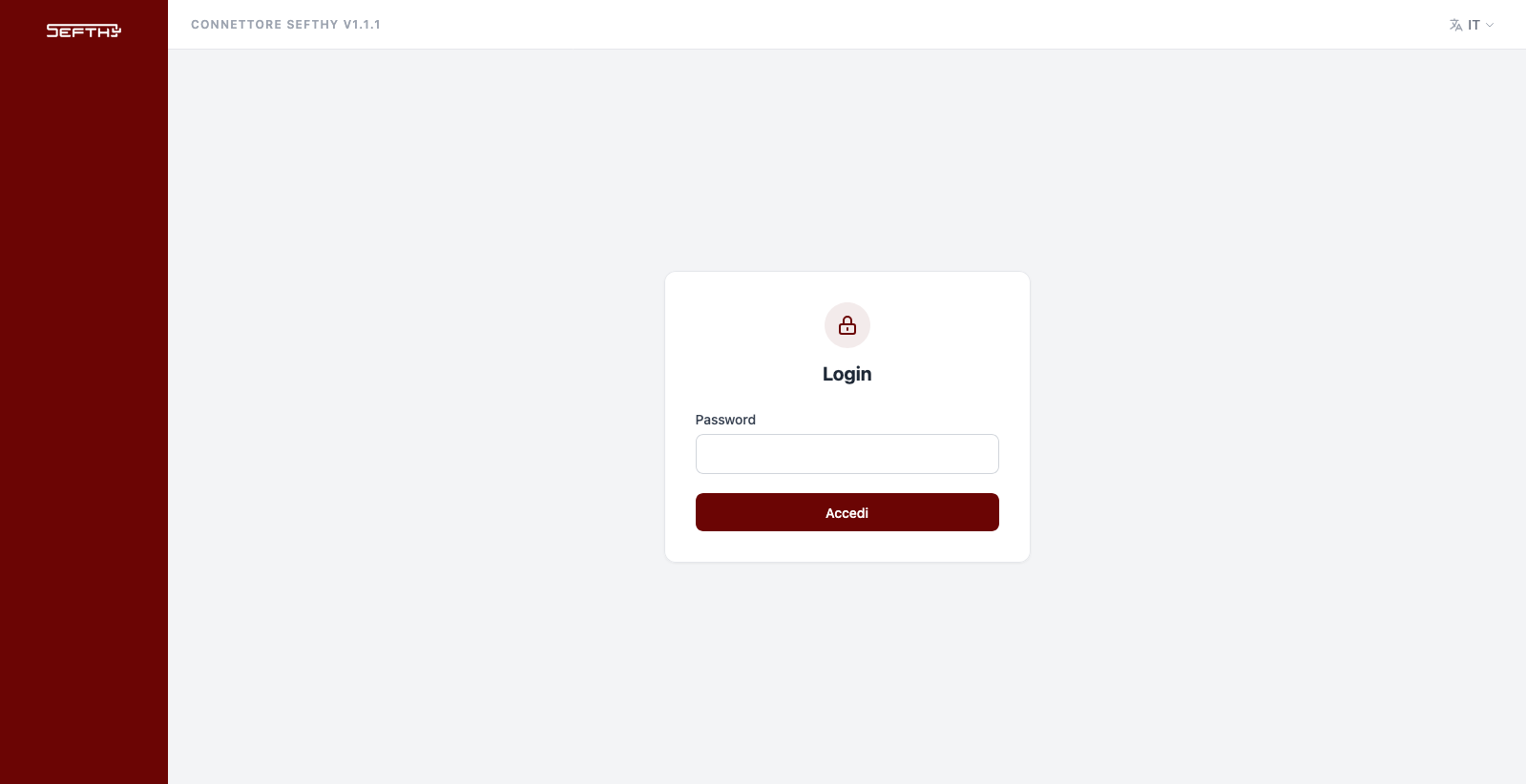
The Connector exposes a web page where you check its state, change the network configuration, paste the Activation Token and run the Connector Speedtest from the diagnostics. You reach it at the IP address the device shows on screen, and the default password is Sefthy.
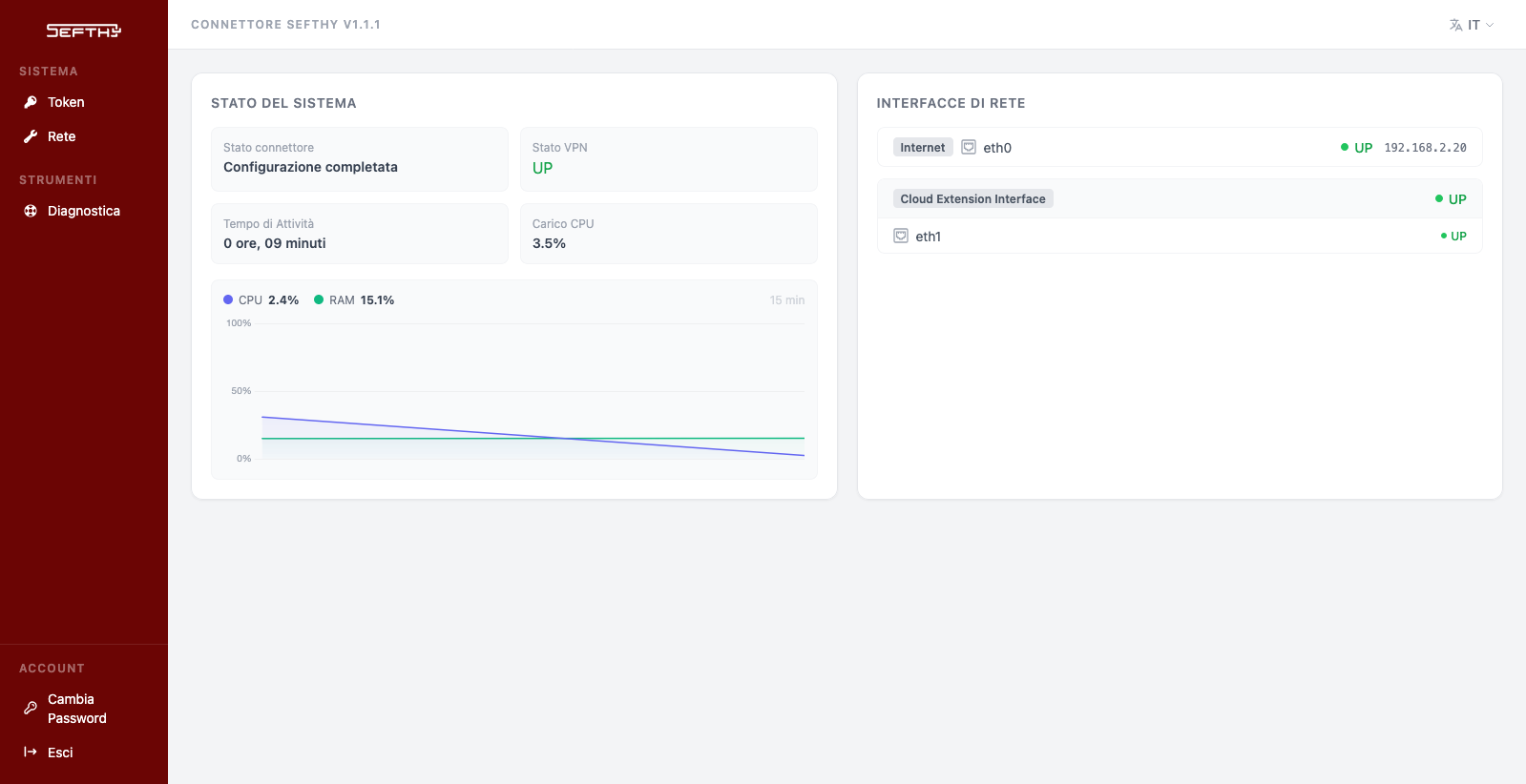
After login the home page sums up the device state. On the left is the System status, with the connector state, the VPN status, uptime and CPU and RAM load. On the right are the Network interfaces, meaning the Internet interface with its address and the Cloud Extension Interface.
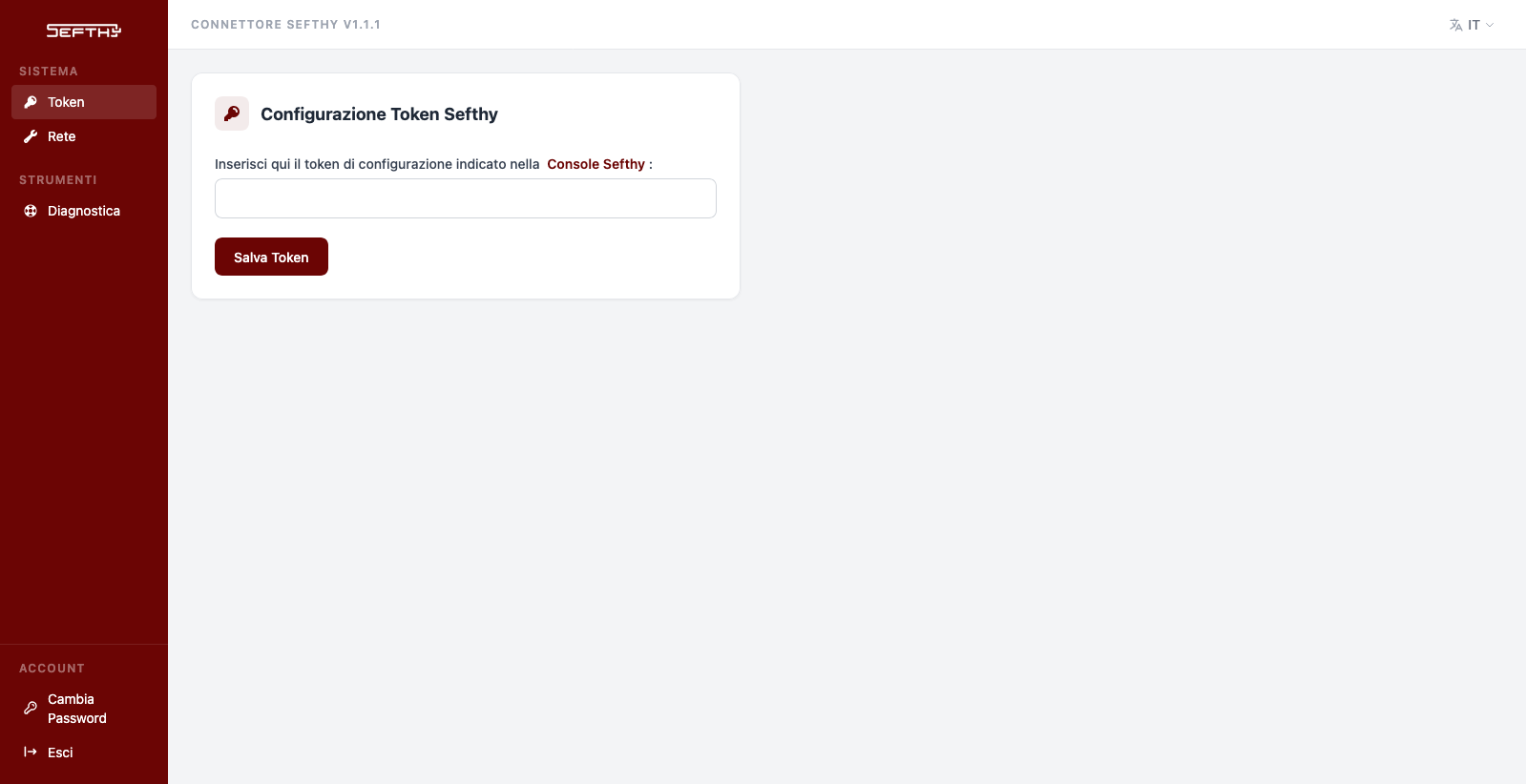
From the Token menu you paste the configuration token you find in the Console and click Save Token.
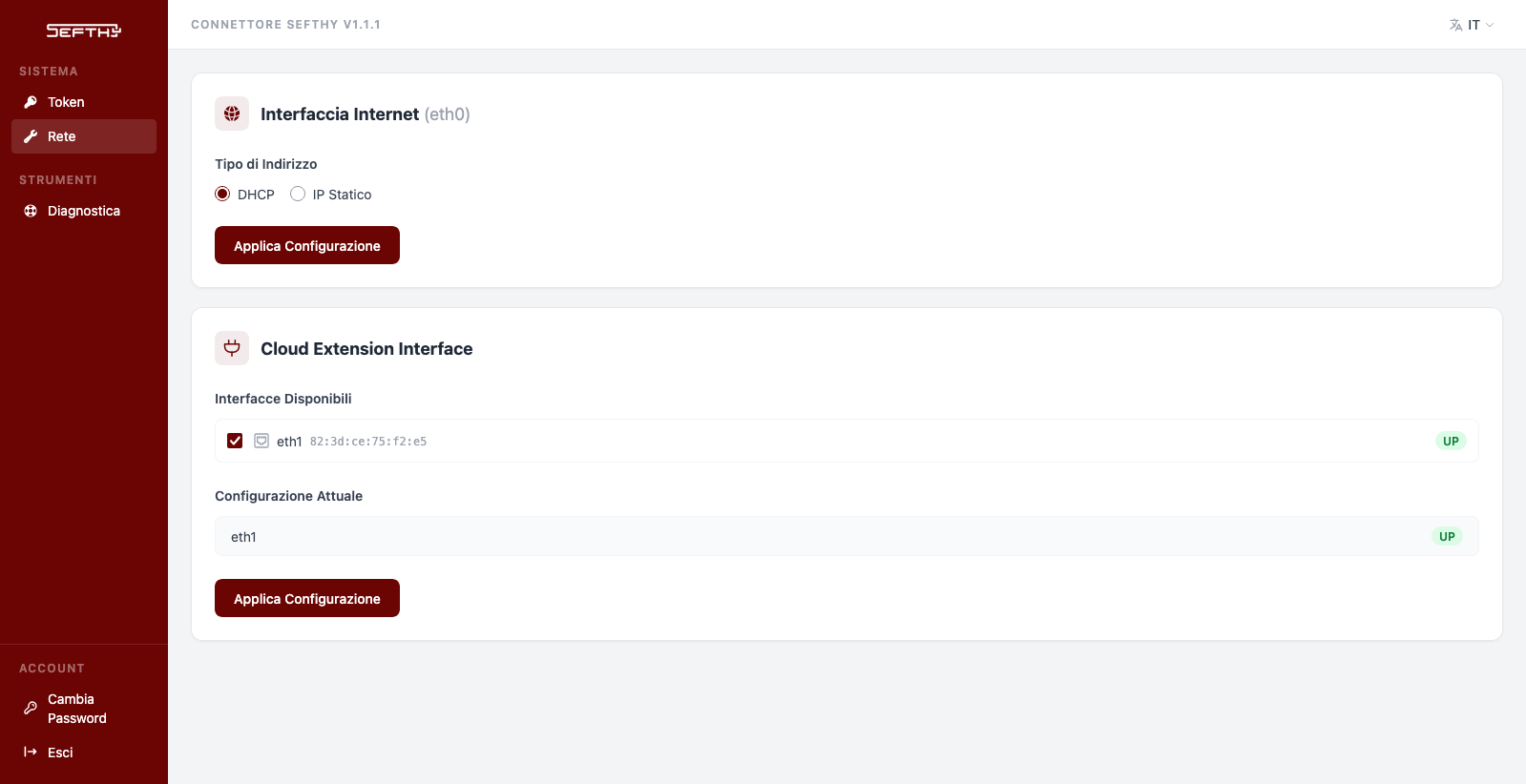
From the Network menu you choose between DHCP and static IP for the Internet interface and select which ports act as Cloud Extension Interface. Each block is confirmed with its own Apply Configuration.
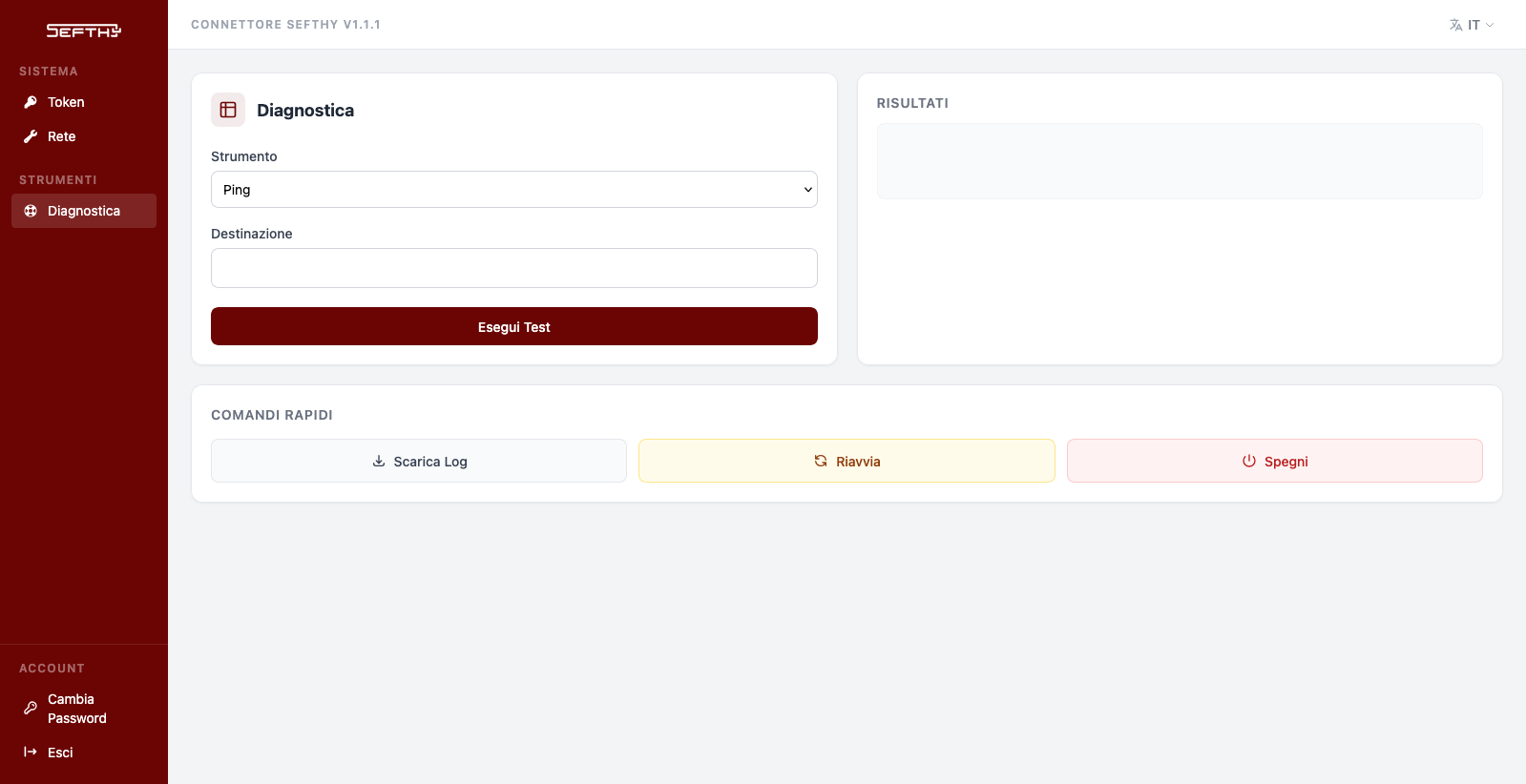
From the Diagnostics menu you run ping and the other tests towards a destination and read the result on the right. Below, the Quick commands download the logs, reboot or shut down the device. At the bottom of the menu, Change Password replaces the default one.
Activation without touching the device
A Connector fresh out of the box does not need manual configuration. The Sefthy Agent installed on the server looks for it on the network and the Console shows it in the wizard with its serial number. You press Activate and associate and the device receives its configuration on its own. It takes about two minutes, and when it is done the Connector is operational and already linked to that DR. This works for an x86 ISO connector too, which has no serial number at all.
When the Connector sits in another segment and does not answer the search, you pick it by hand from the wizard list.