Connector installation on x86 Devices
Once activated the Disaster Recovery Plan within the Sefthy Console, you can add the Connector by selecting Add and choosing the x86 ISO installation.
Once activated the Disaster Recovery Plan within the Sefthy Console, you can add the Connector by selecting Add and choosing the x86 ISO installation.
x86 Device installation
The ISO version of the Connector can be installed either on physical hardware or in a virtual machine within your own infrastructure.
Below are the minimum resources required:
- 2 CPU cores
- 1 GB RAM
- 10 GB HDD
- 2 Ethernet NICS in BRIDGE MODE (not NAT mode)
The installation, lasting about ten minutes at most, guides us in a few simple steps to configure the essential parameters for operation:
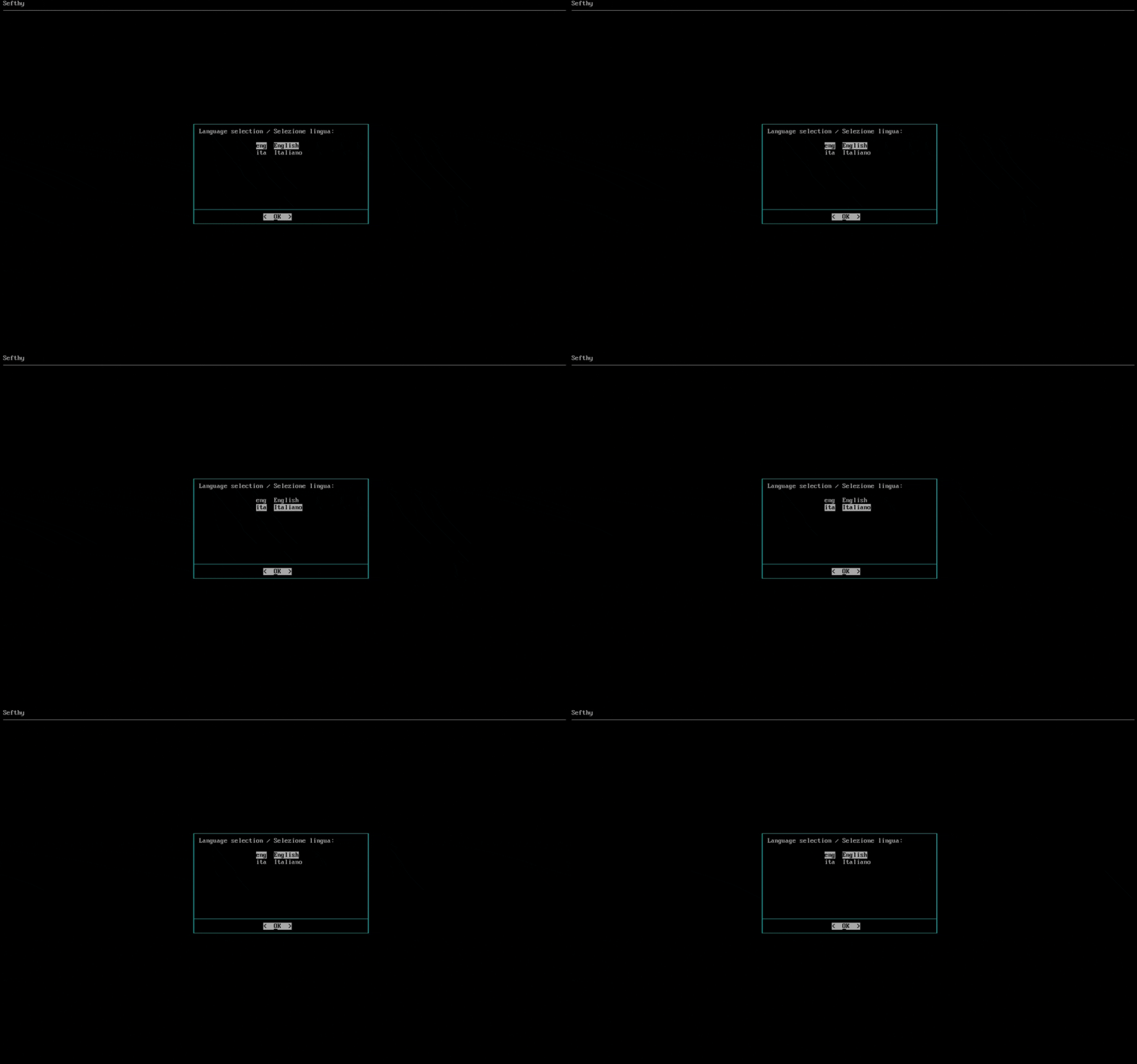
- First we select the desired language.
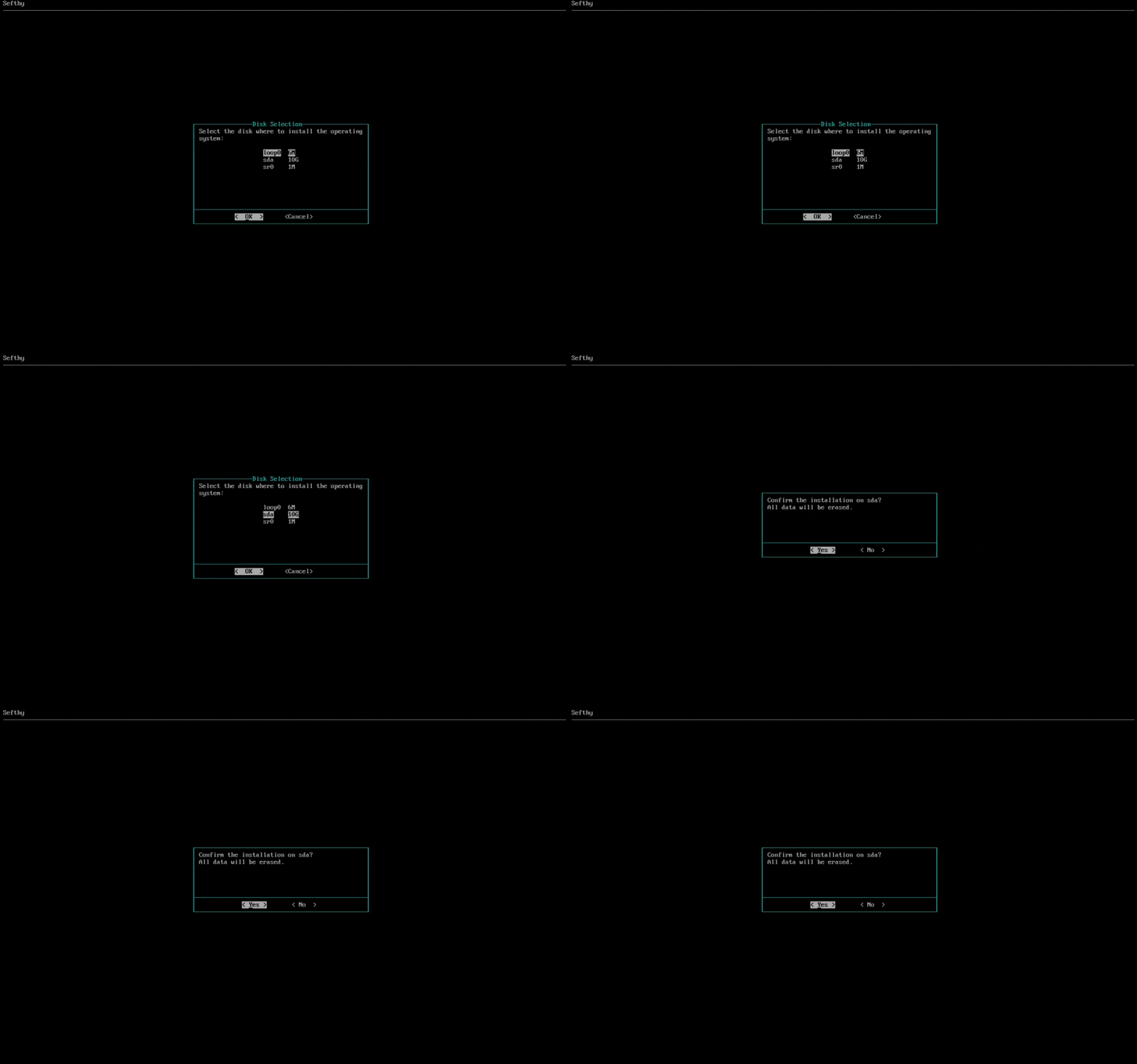
- Choose the disk where the operating system will be installed.
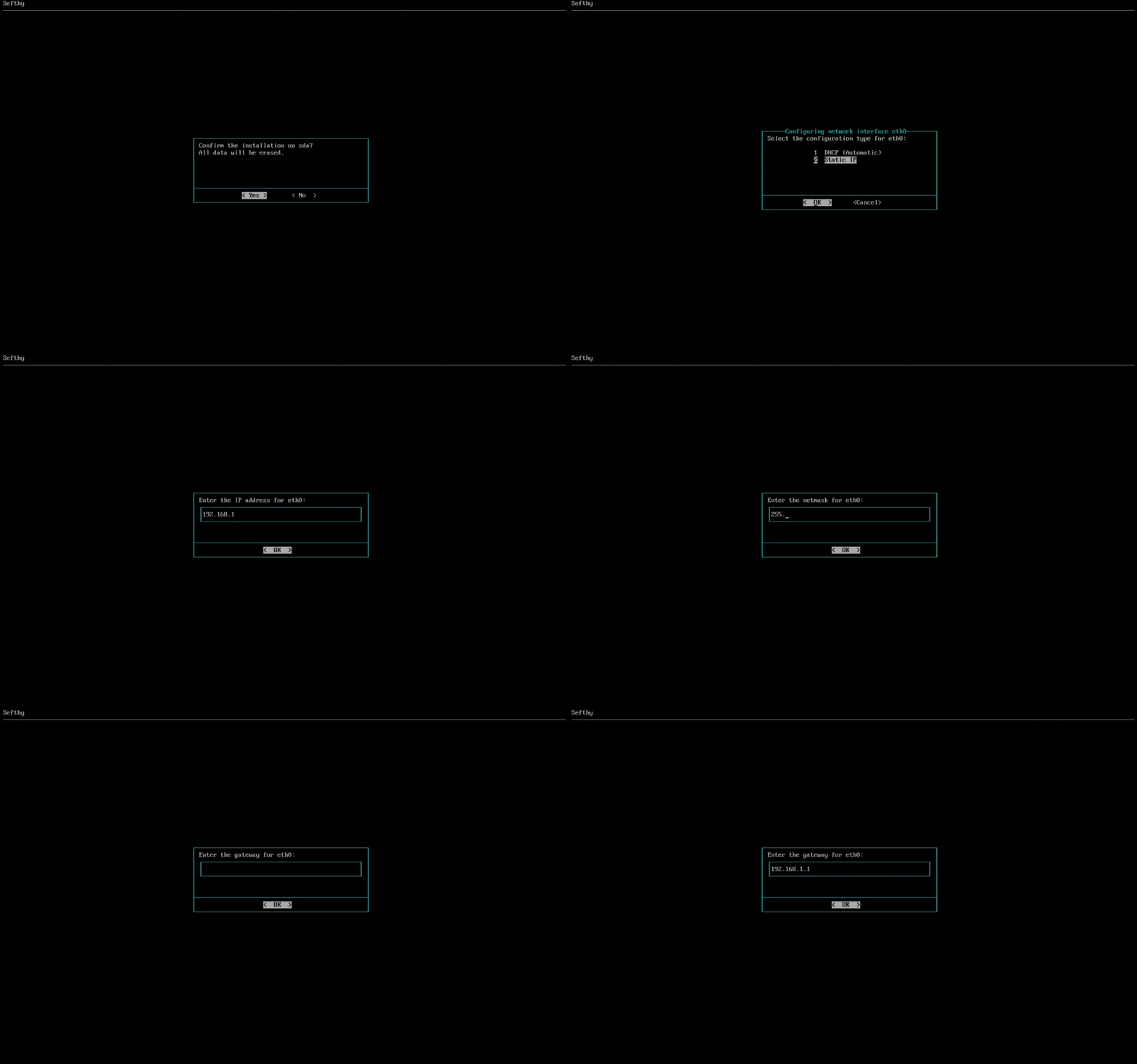
- Select the network card that will allow our Connector to connect to our infrastructure through the Internet. You can choose the IP configuration between DHCP or Static (recommended).
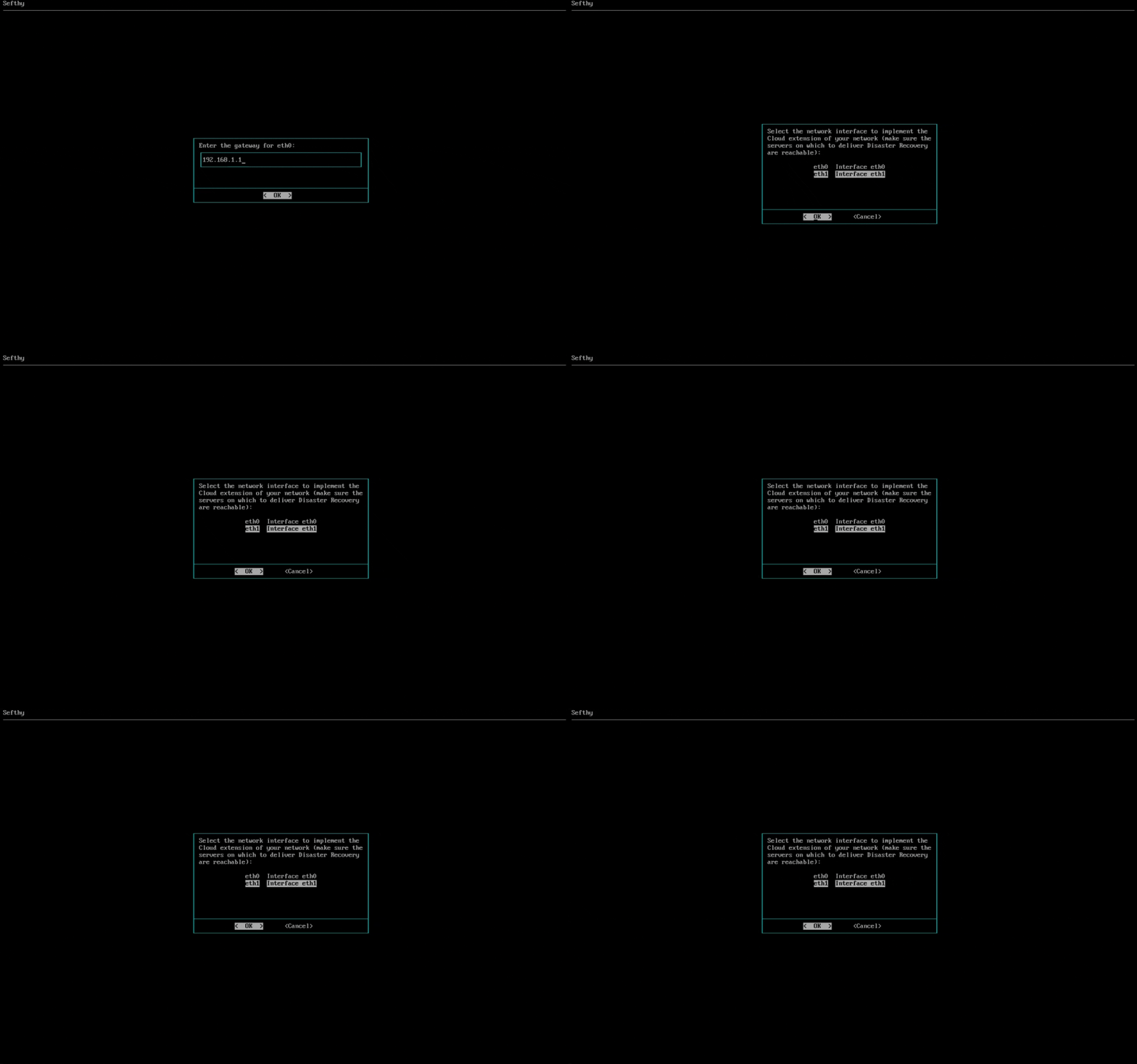
- Select the network card for Cloud Network Extension (it must be physically connected where the resources that need to use Disaster Recovery are present and be in BRIDGE mode, so the Connector can reach the same L2 broadcast domain of your device).
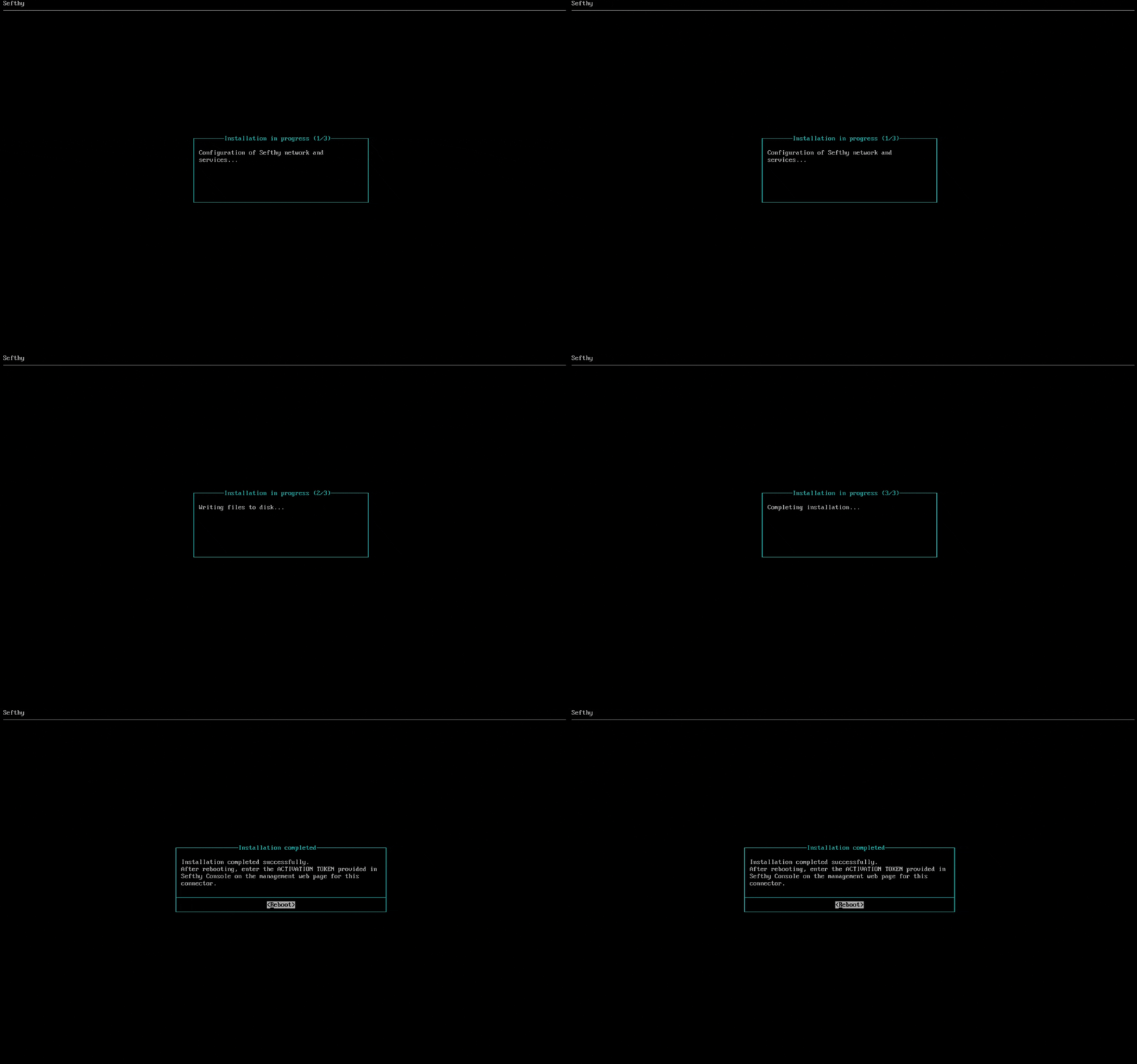
- Wait for the installation to complete. The installation will proceed with copying and configuring the system according to the parameters we chose in the previous steps.
At the end of the installation, simply remove the ISO and restart the machine.
Once the boot process is complete, you can connect to the connector’s web interface to enter the Activation Token:
- Go to
http://<CONNECTOR_IP> - Log in with the default password: Sefthy. You will immediately have to choose a new custom password.
- Go to the “Token” menu item and enter the activation key we provided.